How to Set Up Google Ads Conversion Tracking (Step by Step)
A seven-step guide to setting up Google Ads conversion tracking, choosing between the Google tag, Tag Manager and GA4, and tracking WhatsApp, calls and COD orders in India.
To set up Google Ads conversion tracking, create a conversion action in Google Ads under Goals, add the Google tag to your website (directly or through Google Tag Manager), then test that it fires when someone completes the action. You can also import key events from a linked GA4 property instead of building tags from scratch.
This guide covers all seven steps, which method to choose, and how Indian businesses can track leads, WhatsApp clicks and cash-on-delivery orders properly.
What is Google Ads conversion tracking?
It is how Google Ads records the valuable actions people take after clicking or viewing your ad, such as a purchase, a lead form or a call. Without it, you can see clicks and cost but not which keywords and campaigns actually bring business.
Conversion data also feeds Smart Bidding. Google’s own setup guide warns that wrongly setting actions as primary or secondary can stop Smart Bidding from optimising effectively, because the bidding system learns from those signals. If you plan to run Performance Max or Target CPA bidding, tracking is the foundation.
Free playbook
Get the free Google Ads Playbook
A 25-page guide covering account setup, conversion tracking, keywords, ads, bidding, Performance Max, a 30-day launch plan, an audit checklist and templates. We email it to you, plus occasional new guides. Unsubscribe anytime.
What do you need before you set up conversion tracking?
You need admin access to your Google Ads account, access to your website or its tag manager, and a clear list of the actions that matter. If you want to import from Google Analytics, you also need edit access to the linked GA4 property.
- Google Ads access: admin access to create and edit conversion actions.
- Website access: the ability to add a tag, a plugin or a Google Tag Manager container.
- A thank-you page or event: a page or action that only happens after a real conversion, such as an order confirmation page.
- GA4 (optional): a GA4 property linked to Google Ads, with the right events marked as key events.
If you haven’t set up analytics yet, start with our guide to setting up Google Analytics 4.
How do you set up Google Ads conversion tracking step by step?
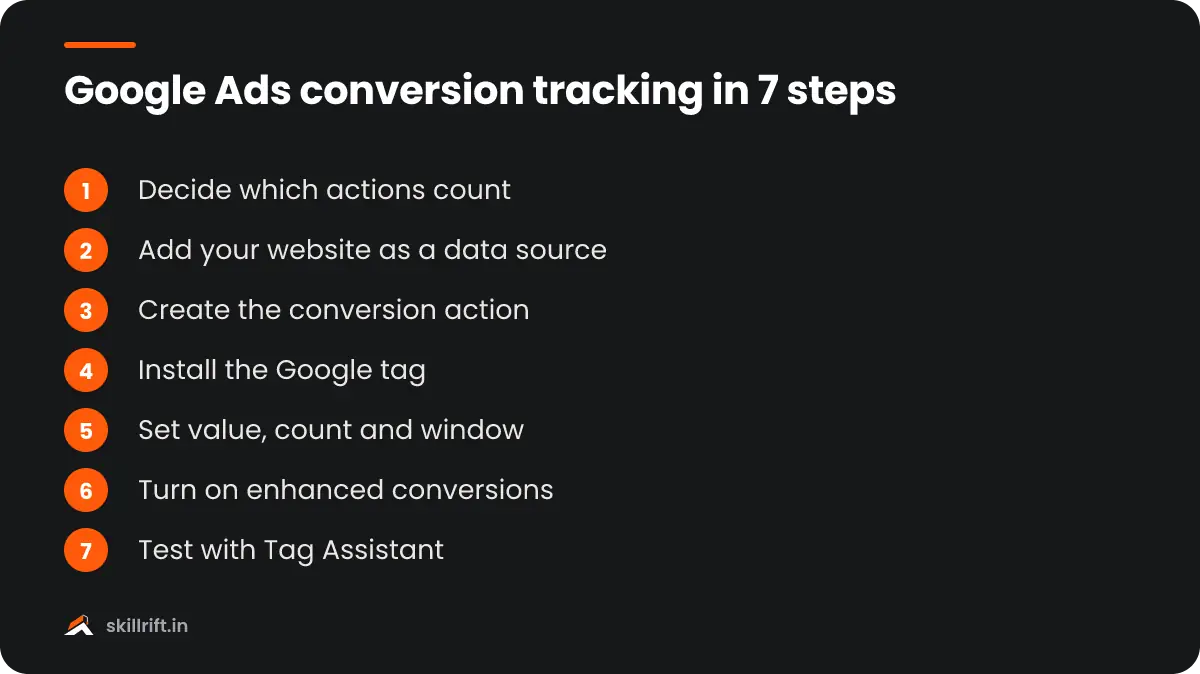
Follow seven steps: choose your conversions, add your website as a data source, create the action, install the tag, set its value and window, turn on enhanced conversions, and test. Google’s interface changes often, so menu names may differ slightly in your account.
Step 1: Decide which actions count as conversions
List the actions that are worth money to your business, and rank them. A purchase or a qualified lead should be a main conversion, while smaller actions like a brochure download are better kept as supporting signals.
Step 2: Add your website as a data source
In Google Ads, go to Goals, then Summary, and select Create conversion action. Enter your domain and select Scan, which checks whether a Google tag or a linked GA4 property already exists.
Google’s setup guide says the scan detects an existing Google tag or Google Analytics property and lets you use both if you want. If nothing is found, you can set up the tag at the end of the process.
Step 3: Create the conversion action
Pick the category that best fits the action, such as Purchase, Submit lead form or Contact, then choose how to measure it. Use a URL rule for simple page loads and code for button clicks or dynamic values.
A URL rule can match the page exactly, or match a part of it such as “thank-you”. Google recommends the code method when you need to measure clicks on buttons or links, or pass purchase values and transaction IDs.
Step 4: Install the Google tag
Add the Google tag to every page of your site, either by pasting the code into the site header, using your platform’s plugin, or publishing it through Google Tag Manager. Then add the event snippet or a Google Ads conversion tag for the action itself.
If you use Tag Manager, our Google Tag Manager setup guide shows how to create triggers for thank-you pages and button clicks. Avoid installing the same tag through both a plugin and Tag Manager, as that double-counts conversions.
Step 5: Set the value, count and conversion window
Give each action a value, choose whether to count every conversion or one per click, and set the conversion window. Use “Every” for purchases and “One” for leads, so one person filling a form twice isn’t counted as two leads.
By default, Google Ads uses a 30-day conversion window for clicks, and you can set it from 1 to 30, 60 or 90 days depending on the conversion source. Google’s same help page says the default view-through window is 1 day and recommends windows of at least 7 days. If your sales cycle is long, such as B2B services or property, pick a longer window.
Step 6: Turn on enhanced conversions
Enable enhanced conversions so Google can match conversions using hashed first-party data such as email or phone number. It improves measurement when cookies are blocked or missing.
Google explains that enhanced conversions use a one-way SHA256 hash on first-party customer data before sending it. Since April 2026, Google says enhanced conversions for web and for leads have been combined into a single setting, so you no longer have to choose between them. For Indian phone numbers, send them in full international format with the 91 country code.
Step 7: Test the tag and check its status
Complete a test conversion yourself with Google Tag Assistant open, and confirm the conversion tag fires once on the right page. Then check the status of the action in Goals after a day or two.
Don’t panic if numbers don’t appear at once. Google notes that after linking accounts or marking a GA4 event as a key event, it can take 24 to 48 hours before import options appear in Google Ads.
Should you use the Google tag, Google Tag Manager or a GA4 import?
Use the Google tag for a simple site with one or two conversions, Google Tag Manager if you track several actions or other platforms too, and GA4 import if GA4 is already set up well. Many accounts use a mix.
| Method | Best for | Pros | Watch out for |
|---|---|---|---|
| Google tag (gtag.js) with event snippet | Small sites, one or two actions | Direct, fast and Google’s default | Needs code edits for each new event |
| Google Tag Manager | Sites tracking many actions or several ad platforms | One container, no code edits for new tags, version history | Learning curve; easy to double-tag |
| GA4 key event import | Sites with GA4 already set up | No new tags; same data in GA4 and Ads | Depends on GA4 being accurate; may count slightly differently |
| Platform plugin (Shopify, WooCommerce and similar) | Online stores | Sends order values automatically | Check it doesn’t clash with a manual tag |
| Offline import from CRM | Leads that close on the phone or in person | Counts real sales, not just form fills | Needs the click ID (GCLID) saved with each lead |
What is the difference between primary and secondary conversions?
Primary conversions are used for bidding and appear in the main Conversions column. Secondary conversions are for observation only, so you can watch them without them steering your bids.
Make your most valuable action primary and keep micro-actions secondary. If everything is primary, Smart Bidding chases cheap actions like page views instead of sales.
How do you track leads, calls and WhatsApp clicks in India?
Most Indian businesses close sales on WhatsApp, on the phone or with cash on delivery, so form fills and website purchases alone undercount results. Track each contact route separately and, where possible, upload the final sale.
- WhatsApp clicks: in Tag Manager, create a click trigger for links containing wa.me or api.whatsapp.com and send it as a Contact conversion. Keep it secondary until you know how many chats turn into sales.
- Phone calls: track clicks on tel: links from your site, and calls from call assets where your account supports call reporting.
- Cash-on-delivery orders: track the order as a conversion, then use conversion adjustments or offline imports to retract orders that are cancelled or returned.
- Leads closed offline: save the GCLID in your CRM or lead sheet and upload qualified leads and sales, so bidding learns from real customers.
- Consent: India’s Digital Personal Data Protection Act requires a clear purpose and consent for personal data, so state in your privacy notice that you use data for ad measurement.
For a small account, this kind of setup matters even more because each wasted rupee hurts. Our guide to running Google Ads on a small budget shows how to use clean conversion data to stretch ₹500 a day.
How do you avoid duplicate conversions?
Pass a unique transaction ID, such as your order number, with every purchase. If the thank-you page reloads, Google Ads sees the same ID and ignores the second conversion.
Unique transaction IDs, such as order confirmation numbers, are essential for accurate conversion measurement, especially for purchases.
Google Ads Help, Use a transaction ID to minimize duplicate conversions
Google’s page also says the ID must be generated fresh for each order, because Google Ads may only process the first instance of a given ID. A hard-coded or repeated ID quietly drops real sales.
How long does it take for conversions to show in Google Ads?
A new tag can start recording within hours of a real conversion, but reporting and imports often take a day or two to settle. Conversions are also credited to the date of the ad click, not the date of the sale.
That means yesterday’s numbers can still rise over the following weeks as late conversions arrive within your window. Judge campaigns on a period at least as long as your typical time from click to sale.
With tracking in place, you are ready to scale automated campaigns. Read how to set up a Performance Max campaign and keep control, or go back to our complete guide on how to run Google Ads. To learn tracking, bidding and reporting hands-on, see the SkillRift performance marketing course.
Our Take
We would set up one primary conversion before launching a single rupee of spend: the purchase or the qualified lead that actually makes you money. Keep WhatsApp clicks, calls and sign-ups as secondary until you know how many of them turn into customers. Then test it yourself with a real order or form, and compare Google Ads with your own order list or CRM every week for the first month. If the numbers are far apart, fix tracking before you touch bids or budgets, because Smart Bidding can only be as good as the signal you give it.
Common mistakes with Google Ads conversion tracking
Most tracking problems come from counting the wrong thing or counting it twice. Check your account for these before blaming the campaigns.
- Tracking page views as conversions: a visit to the contact page is not a lead. Fire the tag on the thank-you page only.
- Double-tagging: a plugin, a hard-coded tag and Tag Manager all firing the same conversion inflates results.
- Every action set as primary: bidding then optimises for cheap actions instead of sales.
- No transaction ID: reloads and repeat visits to the order page create duplicate purchases.
- Counting every lead: use “One” per click for leads, or spam and repeat submissions inflate numbers.
- Never testing: a site redesign can change the thank-you URL and silently break tracking. Re-test after every website change.
Key takeaway: Good Google Ads conversion tracking means one clearly defined primary conversion, a tag that fires once per real action, enhanced conversions turned on, and a weekly check against your actual sales.
Frequently asked questions
Is Google Ads conversion tracking free?
Yes. Creating conversion actions, installing the Google tag, using Google Tag Manager and importing GA4 key events cost nothing. You only pay for your ad clicks or impressions. Paid costs only come in if you hire a developer or use a paid plugin or server-side hosting.
Can I track Google Ads conversions without a website?
Partly. You can track calls from your ads, app installs and in-app actions, and you can import offline sales from a CRM or spreadsheet using the click ID. For website actions like form fills and purchases, you need a tag on the site.
Why is Google Ads showing zero conversions?
The usual causes are a tag that isn’t firing on the thank-you page, a URL rule that doesn’t match the real page, a newly created action that hasn’t had time to record data, or the action set as secondary so it is left out of the main Conversions column. Test with Tag Assistant first.